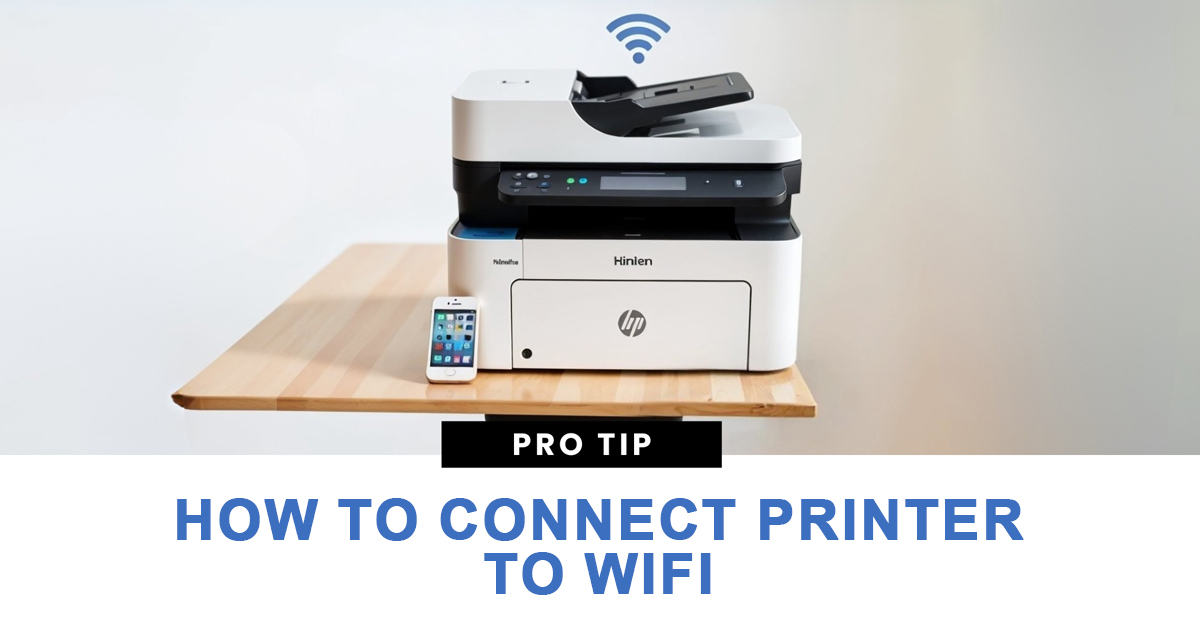
In today’s world of wireless technology, learning how to connect your printer to WiFi is essential. Whether you have a Canon, HP, Epson, or Brother printer, connecting it to WiFi can save time, reduce clutter, and allow you to print from any device—laptop, desktop, tablet, or even your smartphone.
🔹 Why Connecting Your Printer to WiFi Is So Important
Gone are the days of messy cables and USB connections. When your printer is connected to WiFi, you unlock several benefits:
- 🧾 Wireless Printing — Print from anywhere in your home or office without plugging in cables.
- 📱 Mobile & Cloud Printing — Send documents directly from your phone using apps like Google Cloud Print, Apple AirPrint, or Canon PRINT.
- 👨👩👧 Multiple Device Access — Everyone on the same network can use the same printer.
- ⚙️ Easy Maintenance & Updates — Many WiFi printers automatically download firmware updates when connected.
So whether you’re setting up a home office or managing business printing, WiFi connectivity makes everything smoother and faster.
🔹 Preparation Before You Connect
Before we dive into how to connect your printer to WiFi, make sure you have the following ready:
- A working WiFi connection (preferably 2.4 GHz for most printers).
- WiFi network name (SSID) and password.
- A powered-on printer within the WiFi range.
- A smartphone, laptop, or PC connected to the same network.
🔹 How to Connect Printer to WiFi: Universal Method (All Brands)
Most modern printers support an easy Wireless Setup Wizard. Here’s the general process that works for most printers, including HP, Canon, Epson, and Brother.
Step 1: Turn on the Printer
Make sure your printer is powered on and placed close to your WiFi router for a strong signal.

Step 2: Access Network or Wireless Settings
On the printer’s control panel (or touchscreen), go to:
Menu → Network Settings → Wireless Setup Wizard

Step 3: Choose Your WiFi Network
From the list of available networks, select your WiFi name (SSID).
Step 4: Enter Your WiFi Password
Use the keypad or touchscreen to enter your WiFi password correctly.

Step 5: Confirm and Connect
Once you press “OK” or “Connect,” the printer will attempt to connect to your WiFi network.
You’ll usually see a confirmation message like “Connected Successfully” or a WiFi icon on the printer screen.
🔹 How to Connect Printer to WiFi (Canon Printers)
If you’re using a Canon printer, here’s a step-by-step guide specifically for Canon models like PIXMA, MG, or TS series.
🧩 Method 1: Using Canon’s Wireless Setup Wizard
- Press the WiFi button on your Canon printer until the blue light flashes.
- On the printer screen, go to Wireless LAN setup.
- Select WiFi Network (SSID) → Enter your WiFi password.
- Wait for the confirmation message “Connected.”
Now your Canon printer is connected to the WiFi network.
🧩 Method 2: Using Canon PRINT Inkjet/SELPHY App
If you prefer connecting via your phone:
- Download the Canon PRINT Inkjet/SELPHY app from Google Play or App Store.
- Open the app and select Add Printer.
- Choose Connect via Wireless Router.
- Follow on-screen instructions to link the printer with your WiFi.
This method is ideal if your Canon printer doesn’t have a screen or you find the manual setup confusing.
🔹 How to Connect HP Printer to WiFi (Bonus Tip)
HP printers are among the most popular in the U.S., and they make WiFi setup easy with the HP Smart App.
- Download the HP Smart app (Windows, macOS, Android, or iOS).
- Turn on your printer and enable WiFi Setup Mode (press and hold the WiFi button for 3–5 seconds).
- Open the app → Tap Set Up a New Printer.
- Follow instructions to connect your printer to WiFi automatically.
After setup, you can print a test page directly from the app.
🔹 Common Problems & How to Fix Them
Even with the right steps, sometimes your printer might refuse to connect. Here are common issues and quick fixes:
| Problem | Possible Cause | Quick Solution |
|---|---|---|
| Printer not showing WiFi network | Out of range or weak signal | Move printer closer to router |
| Incorrect WiFi password | Typo or wrong credentials | Re-enter SSID and password carefully |
| Printer connected but not printing | Device not on same network | Ensure your PC/phone uses same WiFi |
| Printer keeps disconnecting | Router interference or update needed | Restart router and printer |
| Old firmware | Outdated software | Update printer firmware via official app |
🔹 Pro Tips for a Smooth Connection
- Use 2.4 GHz network — Many printers don’t support 5 GHz networks.
- Assign a static IP address — Helps avoid future disconnections.
- Keep your firmware updated — Prevents bugs and improves compatibility.
- Restart devices — After connecting, restart your printer and PC once.
- Check firewall or antivirus — Sometimes these block printer setup apps.
🔹 How Do I Connect My Printer to WiFi Without WPS or USB?
If your router doesn’t have a WPS button, don’t worry! You can still connect manually:
- On the printer’s screen, go to Wireless Settings → Setup Wizard.
- Enter your WiFi name and password manually.
- Once connected, print a Network Configuration Page to confirm.
For printers without a display screen, use the manufacturer’s app (like Canon PRINT or HP Smart) for wireless setup.
🔹 Connect Printer to WiFi Using a Computer (Windows or Mac)
On Windows:
- Go to Settings → Devices → Printers & Scanners.
- Click Add a Printer or Scanner.
- Wait until your printer appears and select it.
- Follow the on-screen prompts to complete setup.
On Mac:
- Open System Preferences → Printers & Scanners.
- Click the “+” button and find your WiFi printer.
- Add and confirm connection.
🔹 Final Thoughts: Print Wirelessly, Effortlessly
Connecting your printer to WiFi might seem tricky at first, but with the right steps, it’s quick and straightforward. Once connected, you’ll enjoy seamless wireless printing from any device — no tangled cables, no hassle.
Whether you’re using Canon, HP, Epson, or any other brand, follow the guide above and you’ll never have to ask again:
👉 “How do I connect my printer to WiFi?”
🔹 Quick Recap
✅ Works for all major printer brands
✅ Canon users can use the Canon PRINT app
✅ HP users can use HP Smart app
✅ Always check WiFi range & password
✅ Use 2.4 GHz WiFi for best compatibility
🏁 Bonus SEO Tip:
If you found this guide helpful, share it or bookmark it! Regularly check for firmware updates and router stability to keep your printer running like new.